Signup and Login Module
This section describes the Signup and Login workflow for the Winguport system. Users can either sign in with an existing account, or get started by creating a new account as a Professional or Recruiter.
1. Login / Get Started
- On the landing screen, the user is presented with two options:
- Sign In – for users with existing accounts.
- Get Started – for new users who want to create an account.
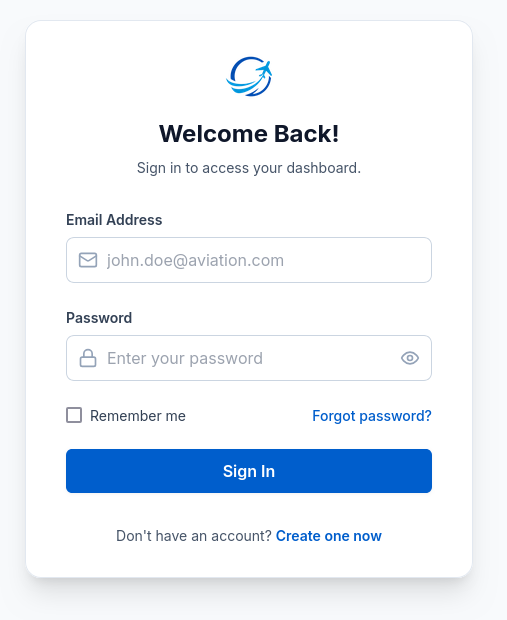
 When choosing Sign In, the user is presented with the following fields:
- Email Address - – must be a valid email address
-
Password
-
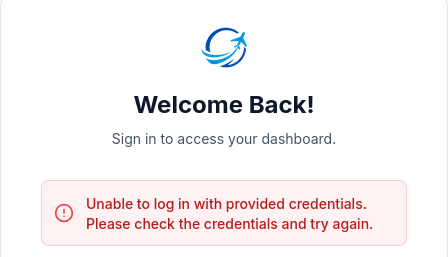
if not a user gets an error message
After filling in these details, the user can click Sign In to access their account.
If the user does not have an account, they can click Get Started instead.
- Click on the get started button if you dont have an account and on the sign in button i you have an account

2. Professional Signup
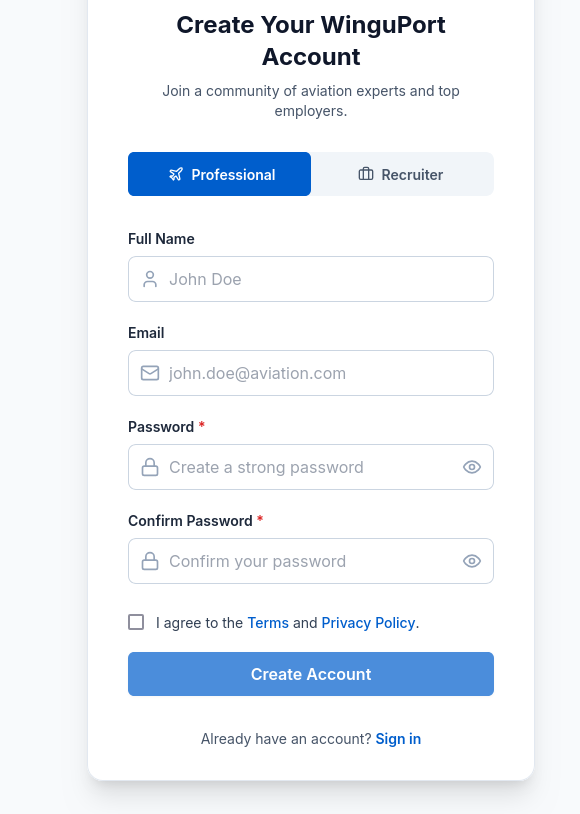
When selecting Professional, the signup form displays the following fields:
- Full Name
- Email Address
- Password
- Confirm Password
Additionally:
- A checkbox to agree to the Terms and Policy.
- A Create Account button.
Successful Account Creation
- Once the form is submitted successfully, the user sees a success message.
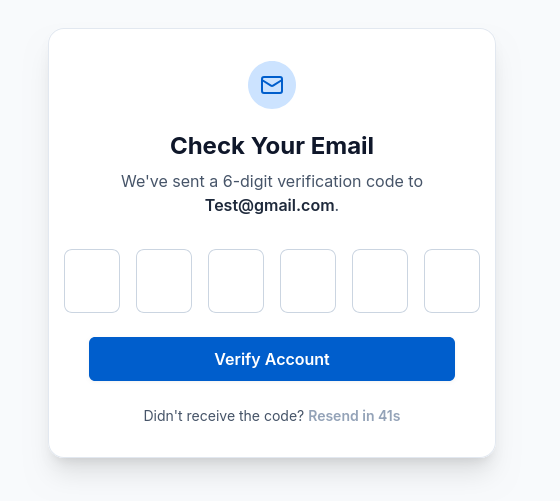
- The system then redirects them to the OTP verification step, where they must check their email for the OTP code.
3. Recruiter Signup
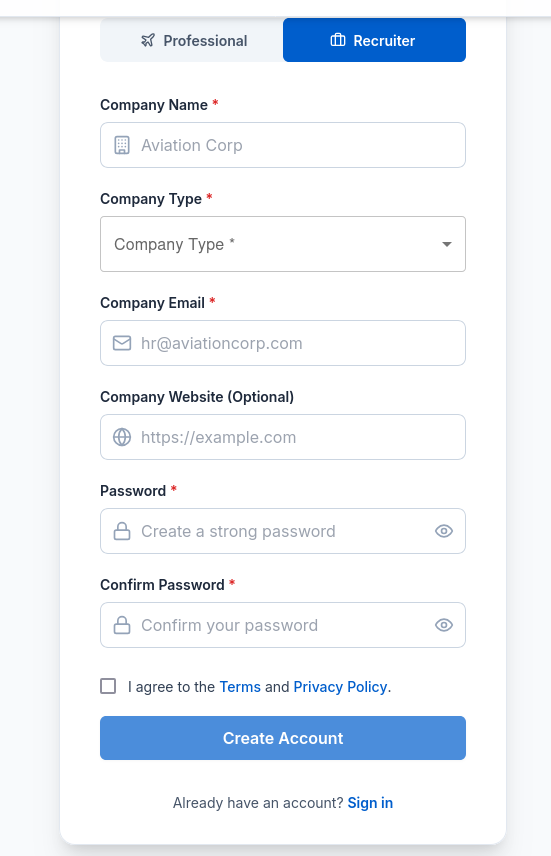
When selecting Recruiter, the signup form displays the following fields:
- Company Name
- Company Type
- Company Email
- Company Website
- Password
- Confirm Password
Additionally:
- A checkbox to agree to the Terms and Policy.
- A Create Account button.
Successful Account Creation
- Once the recruiter’s details are submitted successfully, the user sees a success message.
- The system then redirects them to the OTP verification step, where they must check their email for the OTP code.
4. Forgot Password (Optional)
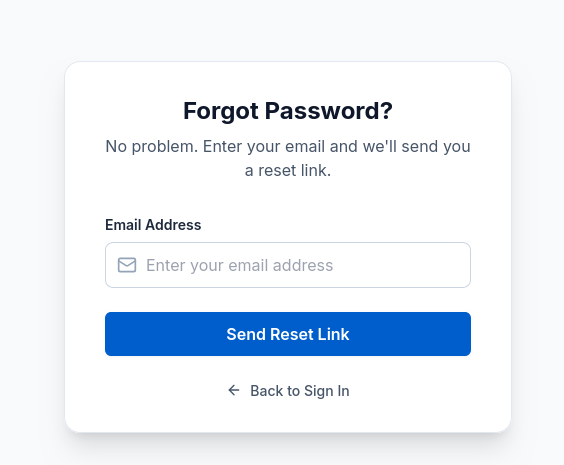
If a user forgets their password, they can reset it through the Forgot Password feature.
5. Flow Summary
- Sign In – Existing users log in.
- Get Started – New users choose between Professional or Recruiter.
- Each role has a dedicated signup form.
- Upon successful signup:
- A success message is shown.
- User is redirected to OTP verification.
- If needed, the user can use Forgot Password to recover their account.